

An Excel crash course should not try to teach you everything. Most everyday work relies on a small core: moving around quickly, entering data, writing a few formulas, using tables, sorting and filtering, highlighting what matters and summarizing it with a chart or a PivotTable.
This guide is that core, in ten short lessons. Each one teaches one skill and ends with a small exercise. Work through them in order and you can finish in a weekend.
In this guide
- Set up your practice file
- Lesson 1: Find your way around a sheet
- Lesson 2: Enter data fast with the fill handle
- Lesson 3: Relative and absolute references
- Lesson 4: Six functions that do most of the work
- Lesson 5: Format as Table
- Lesson 6: Sort and filter
- Lesson 7: Conditional formatting
- Lesson 8: Build one clear chart
- Lesson 9: Your first PivotTable
- Lesson 10: The keyboard shortcuts worth learning
- The crash course in one weekend
- Where to go after the crash course
- FAQ
Set up your practice file
You learn Excel by typing, not by reading. Open a blank workbook and create a small sales list that every lesson will reuse. In row 1, enter these headers: Date, Region, Rep, Product, Units, Unit price. Then fill in 20 to 30 rows with made-up data: three or four regions (North, South, East, West), three reps, three products, units between 1 and 50, and a price per product.
It does not need to be realistic. Save it as crash-course.xlsx before you start.
Lesson 1: Find your way around a sheet
A workbook is a file made of worksheets, and each sheet is a grid of cells named by column and row, such as B4. Four parts of the screen matter from day one:
- The ribbon at the top, grouped into tabs. Home holds most everyday commands.
- The Name Box above column A. It shows the selected address; type Z500 there and press Enter to jump to it.
- The formula bar next to it, which shows what is really inside a cell: a value or the formula behind the result.
- The status bar at the bottom. Select some numbers and it shows their sum, average and count.
Stop scrolling. Ctrl+Arrow jumps to the edge of the current data region, Ctrl+Shift+Arrow selects everything up to that edge, Ctrl+Home goes back to cell A1 and Ctrl+Page Down moves to the next sheet.
Exercise: click A1, press Ctrl+Down Arrow to reach your last row, then Ctrl+Shift+Up Arrow to select the whole column back to the top. Read the count in the status bar.
Lesson 2: Enter data fast with the fill handle
Enter confirms and moves down, Tab moves right, F2 edits a cell in place.
The fill handle is the small square at the bottom-right of the selected cell. Drag it to copy or continue a pattern:
- Type Jan and drag right: Excel fills Feb, Mar, Apr and so on.
- Double-click the fill handle of a formula: Excel copies it down as far as the next column has data.
Flash Fill handles text patterns: type the first result by hand next to your data, then press Ctrl+E and Excel fills the rest.
Exercise: add an Initials column next to Rep. Type the initials of the first rep by hand, then press Ctrl+E.
Lesson 3: Relative and absolute references
Every formula starts with an equals sign. In a new column G titled Revenue, type =E2*F2 in G2 and double-click the fill handle. Row 3 now contains =E3*F3, row 4 =E4*F4: Excel shifted the references because they are relative. That is what you want most of the time.
Sometimes one cell must stay fixed. Put a tax rate of 8% in cell J1 and, in H2, type =G2*J1. Copy it down and the results break, because the next row reads J2, which is empty. The fix is an absolute reference: =G2*$J$1. The dollar signs lock the column and the row.
You don’t need to type the dollar signs. Click inside the reference while editing the formula and press F4: Excel cycles through $J$1, J$1 (row locked), $J1 (column locked) and back to J1.
Exercise: add the Tax column with =G2*$J$1, copy it down, then change J1 to 10% and watch every row update.
Lesson 4: Six functions that do most of the work
Learn these six functions well before anything else. The examples use the practice file.
| Function | What it does | Example |
|---|---|---|
| SUM | Adds a range | =SUM(G2:G30) |
| AVERAGE | Calculates the mean | =AVERAGE(E2:E30) |
| IF | Returns one value if a test is true, another if it is false | =IF(E2>=20,”Large”,”Small”) |
| COUNTIF | Counts the cells that meet one condition | =COUNTIF(B2:B30,”North”) |
| SUMIF | Adds the values that meet one condition | =SUMIF(B2:B30,”North”,G2:G30) |
| XLOOKUP | Finds a value in one column and returns the matching value from another | =XLOOKUP(“Product B”,D2:D30,F2:F30) |
Alt+= inserts a SUM in one keystroke. In IF, text results go in double quotes. COUNTIFS and SUMIFS accept several conditions.
XLOOKUP replaces VLOOKUP: it looks in any direction, matches exactly by default and accepts a message when nothing is found. It is available in Excel for Microsoft 365, Excel 2021 and later versions.
Exercise: calculate total revenue, average units, and the sales count and revenue of each region with COUNTIF and SUMIF. Then make XLOOKUP return the price of a product you type.
Lesson 5: Format as Table
This habit saves the most time. Click anywhere inside your list and press Ctrl+T (or Home > Format as Table), check that “My table has headers” is ticked and click OK. Your range becomes an Excel table, and you gain four things at once:
- Banded rows and filter buttons on every header.
- Automatic expansion when you type a new row below.
- Calculated columns: a formula typed once fills the whole column.
- A Total Row (Table Design tab) with sums, averages or counts.
Name it tblSales on the Table Design tab, and formulas such as =SUM(tblSales[Revenue]) keep working as the table grows.
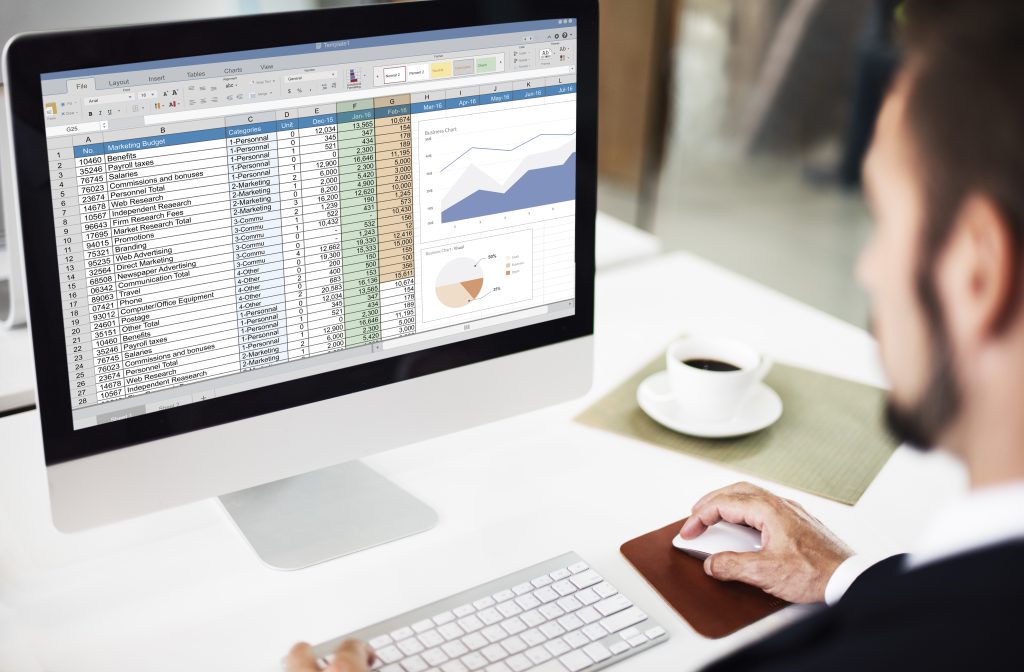
Exercise: convert your list into a table named tblSales, turn on the Total Row, and add three new sales below the last row. Check that the total updates on its own.
Lesson 6: Sort and filter
With a table, the filter buttons are already on the headers. On a plain range, select a cell in it and press Ctrl+Shift+L to turn filters on or off.
- Quick sort: click a header arrow and choose Sort A to Z or Sort Largest to Smallest. Excel keeps each row together.
- Multi-level sort: Data > Sort, then Add Level, for example Region then Revenue.
- Filter: click a header arrow and untick the values you want to hide. Number Filters and Date Filters offer conditions such as Greater Than, Top 10 or Last Month.
Filtered rows are hidden, not deleted, and the Total Row of a table counts only visible rows. Data > Clear removes every filter at once.
Exercise: show only the sales of the West region with more than 10 units, sorted by date from newest to oldest. Then clear all filters.
Lesson 7: Conditional formatting
Conditional formatting makes important numbers stand out. Select a range and go to Home > Conditional Formatting:
- Highlight Cells Rules colors values greater than, less than or equal to a number, or containing some text.
- Top/Bottom Rules marks the top 10 items, the bottom 10% or values above average.
- Data Bars and Color Scales turn a column of numbers into a mini chart inside the cells.
- New Rule > Use a formula formats entire rows. Select the table body and use =$B2=”North” to color every North row.
Keep it sparing: one or two rules per sheet make a point, six make noise.
Exercise: add data bars to Revenue and highlight in red any row where Units is below 5, using a formula rule.
Lesson 8: Build one clear chart
Select the data you want to show, including its labels, and use Insert > Recommended Charts. Excel proposes chart types that fit your data. Alt+F1 inserts a default chart on the current sheet in one keystroke, and F11 puts it on a sheet of its own.
Pick the chart for the question you are answering:
| Question | Chart type |
|---|---|
| How do categories compare? | Clustered column or bar |
| How does a value change over time? | Line |
| What share does each part represent? | Pie or doughnut, with five slices or fewer |
| Are two measures related? | Scatter |
Then clean it up: give it a title that states the finding, delete the legend if there is only one series and remove gridlines you don’t need.
Exercise: build a column chart of revenue by region from your SUMIF summary, then rewrite its title as a sentence.
Lesson 9: Your first PivotTable
A PivotTable summarizes thousands of rows without formulas. Click inside tblSales, go to Insert > PivotTable, choose New Worksheet and click OK. The PivotTable Fields pane has four areas:
- Rows: the categories listed down the side, for example Region.
- Columns: categories across the top, for example Product.
- Values: the numbers to calculate, for example Sum of Revenue.
- Filters: a field that filters the whole report, for example Rep.
Drag Region to Rows, Product to Columns and Revenue to Values: you get revenue by region and product with totals. Right-click a number and choose Value Field Settings to switch from Sum to Count or Average, and Show Values As > % of Grand Total to see shares. When the source data changes, right-click the PivotTable and choose Refresh.
Grouping dates, slicers and calculated fields are covered in our step-by-step PivotTable training.
Exercise: build a PivotTable that shows the number of sales and the total revenue per rep, sorted from best to worst.
Lesson 10: The keyboard shortcuts worth learning
You don’t need a hundred shortcuts. These cover the moves you repeat dozens of times a day in Excel for Windows. On a Mac, most use Cmd or Control instead of Ctrl, and some function keys require the Fn key.
| Shortcut | Action |
|---|---|
| Ctrl+Arrow | Jump to the edge of the data region |
| Ctrl+Shift+Arrow | Select to the edge of the data region |
| Ctrl+Home | Go to cell A1 |
| Ctrl+Page Down / Page Up | Next / previous sheet |
| F2 | Edit the active cell |
| F4 | Toggle absolute and relative references while editing a formula |
| Ctrl+D / Ctrl+R | Fill down / fill right |
| Ctrl+; | Insert today’s date |
| Ctrl+E | Flash Fill |
| Alt+= | AutoSum |
| Ctrl+T | Create a table |
| Ctrl+Shift+L | Turn filters on or off |
| Alt+F1 / F11 | Insert a chart on the sheet / on a new chart sheet |
| Ctrl+Z / Ctrl+Y | Undo / redo |
Pick three you don’t use yet and stick to them for a week.
Exercise: redo lessons 5 and 6 on a copy of your sheet without touching the mouse.
The crash course in one weekend
Here is a plan for about eight hours of work over two days.
| When | Lessons | Goal at the end of the session |
|---|---|---|
| Saturday morning (2 h) | Practice file, lessons 1 to 3 | You move around without the mouse and write formulas with relative and absolute references. |
| Saturday afternoon (2 h) | Lessons 4 and 5 | Your list is a named table with a summary built on SUM, IF, COUNTIF, SUMIF and XLOOKUP. |
| Sunday morning (2 h) | Lessons 6 to 8 | You can sort, filter, highlight and chart any list. |
| Sunday afternoon (2 h) | Lessons 9 and 10, then a final project | You build a one-page report from a new data set on your own. |
For the final project, use a real list such as monthly expenses or a sales export. Turn it into a table, add a calculated column, summarize it with SUMIF and a PivotTable, highlight the outliers and add one chart. If you can do that without this guide, the crash course worked.

Where to go after the crash course
A crash course gets you working, not fast on complex files. Next come multi-condition formulas, data validation, dynamic arrays such as FILTER and UNIQUE, then Power Query and Power Pivot. Our advanced Excel skills checklist includes a self-test to see where you stand.
To prove your level to an employer, see our comparison of Excel certificates.
For a complete path instead of scattered tutorials, Gnosarium’s Excel training courses pick up where this crash course stops and take you step by step to an expert level.
Go further than the crash course
Gnosarium’s Excel program has four courses (Beginner, Advanced, Expert and AI, MOS exam prep), with 24 chapters and 225 step-by-step modules. It is based on ICDL Core Spreadsheets 6.0 and Spreadsheets Advanced 3.1 and prepares you for the MOS MO-210 and MO-211 exams. Requires Excel for Microsoft 365. $147 instead of $197.
Excel crash course FAQ
How long does it take to learn the basics of Excel?
About eight to ten hours of focused practice covers the essentials in this guide. Becoming fast and reliable takes a few more weeks of daily use.
What should I learn first in Excel?
Start with navigation and data entry, then formulas with relative and absolute references. Everything else, from functions to PivotTables, builds on those two skills.
Is XLOOKUP better than VLOOKUP?
For most uses, yes. It looks left or right and matches exactly by default. It requires Excel for Microsoft 365 or Excel 2021 and later, so keep VLOOKUP for files shared with older versions.
Can I do this crash course on a Mac or in Excel for the web?
Yes. The features are the same, but some shortcuts differ on a Mac. Excel for the web supports tables, filters, charts and PivotTables, with fewer options.
Is a crash course enough to put Excel on my resume?
It is enough to list basic Excel skills. For Excel-heavy roles, a structured course and a certification such as MOS send a clearer signal.
Leave a Reply